Showing posts with label Trick. Show all posts

Saturday, March 5, 2016

Visual Studio 2015 and Arabic Charecters Support

Alot of times I need to go through my old projects and try to revive them by giving them a framework facelift along with a little bit of gadgets make up. I had a problem with some of those "wreckage" as the have been written for an Arabic content website. so whenever I load them into the coding environment I ended up having a weird looking characters.

Damn you unicode!
Now, I know it has to do with unicode and stuff. So, logically, what I started to do is to save them into Arabic Windows - Codepage 1256 but I made the matter worse as it appeared to me now that it will not be recoverable later and will stick with those gibberish characters.
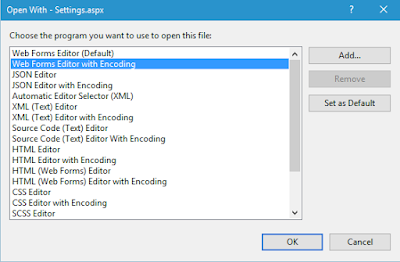
What you have to do if you face this problem.

First, you right-click on the file and select "Open With"


From that dialogue box you select Web Forms Editor with Encoding and then you can choose the Unicode for the page to open with.


In my situation I have selected the Arabic (Windows) - Codepage 1256 to open the page and, voila, it opened with normal looking lovely arabic characters.


But that is not it!

I you saved your file now and reopen it you will go back to square 0 and see that it is still having corrupted characters.

What should I do now?

After that you have to save it using Files > Advanced Save Options and now Unicode (UTF-8 with signature) - Codepage 65001 and then Ctrl + S (to save it)

Opening it now make feel touching the rainbow in the morning breeze!!

Enable Web Administrator Tool in Visual Studio 2015

I stumble upon a dilemma in enabling the great Web Administrator Tool in visual studio 2015 which is a no longer an accessible component in Visual Studio 2013 and 2015. The cause of that is that they removed the Visual Studio Development Server from the product.

There was a great article on Microsoft MSDN in how to get it back. As apparent from the too many comments in that post, the ended up with it not working (including me at first). Here are the steps as in the article and below each one I will point out the error.


  1. Open the Command Prompt (not as administrator)
    • I repeat not as administrator
  2. Navigate to the folder where IIS Express is installed on your machine.
    • usually it is in "Program Files\IIS Express"
  3. In the command line spin up a IISExpress site with the following prompt: iisexpress.exe /path:C:\Windows\Microsoft.NET\Framework\v4.0.30319\ASP.NETWebAdminFiles /vpath:/ASP.NETWebAdminFiles /port:[port] /clr:4.0 /ntlm using the following values for the [param]
    • [port] – any port you have free in IISExpress (I use 8082 in the example below)
    • remove the extra spaces in line with /clr: and /path:
    • remove the quotations marks around /ASP.NETWebAdminFiles
  4. This should launch an IISExpress instance of the Configuration Manager Site
  5. Open your browser
  6. In the URL enter the following http://localhost:8082/asp.netwebadminfiles/default.aspx?applicationPhysicalPath=[appPath]&applicationUrl=/
    • [appPath] is the absolute path to the Visual Studio Project folder with the solution file in it.
With this you will have a flawless initiation of Web Administrator Tool.

Xbox One and Windows 10


Now, one of the greatest things having multiple devices interfacing with each other is how Xbox One can connect to the TV and send On-Off command via HDMI cable. Add to that, connecting the Xbox to a set-top box, also via HDMI, will also do the same. So, how this could be an awesome thing? Will have you tried walking into the room, saying "Xbox On" and just admire how your TV turn on directly to show you some Action.

Now, you ask me what do windows 10 had to do with your showing off having a kinect in addition to the previous setup? Well, there you go:

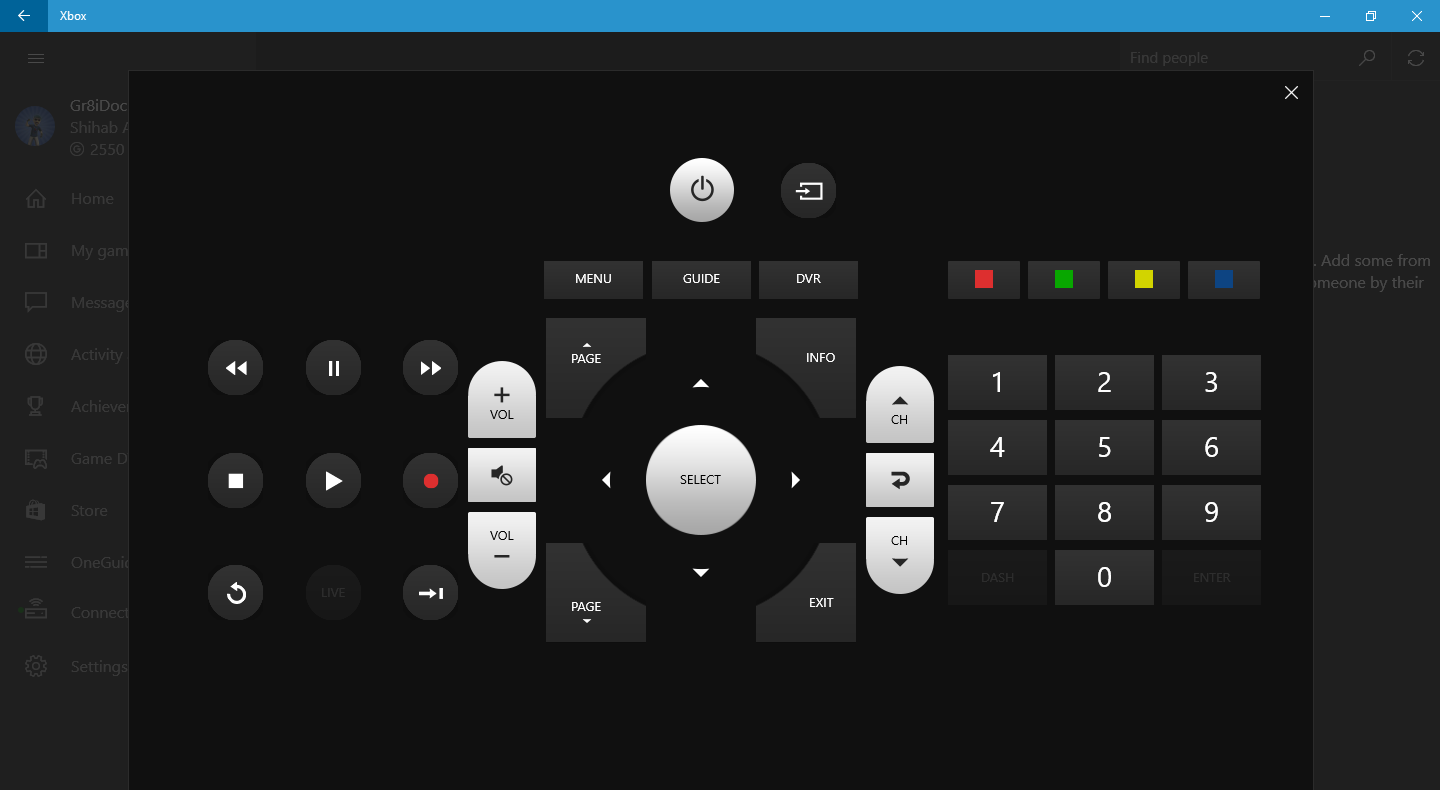
The Xbox application on Windows 10 have many cool features one of which is the ability to sniff around any Xbox connected on your network and give you the ability to connect to it (If it is yours, of course?). Having it connected will give control over the Xbox and you can actually use it as a remote control/Xbox control.  Yeah, certainly you can do that with tons of other ways including the little IR port you have on your mobile or even pressing the red button on the actual remote control, but, in my opinion, nothing beats the feeling of having me doing my stuff on the computer and multitasking everything from the same screen.